
- With the glasses resting on a flat surface (as shown in the image), turn on Colibri. The indicator light will flash red and green.
- Open your operating system’s Bluetooth® settings, enable search, and find Colibri in the list.
- On Windows: Start → Settings → Computer settings → Bluetooth® & other devices.
- On iOS or Android: Open Bluetooth® settings → Find and pair with Colibri.
Pairing Colibri with your device
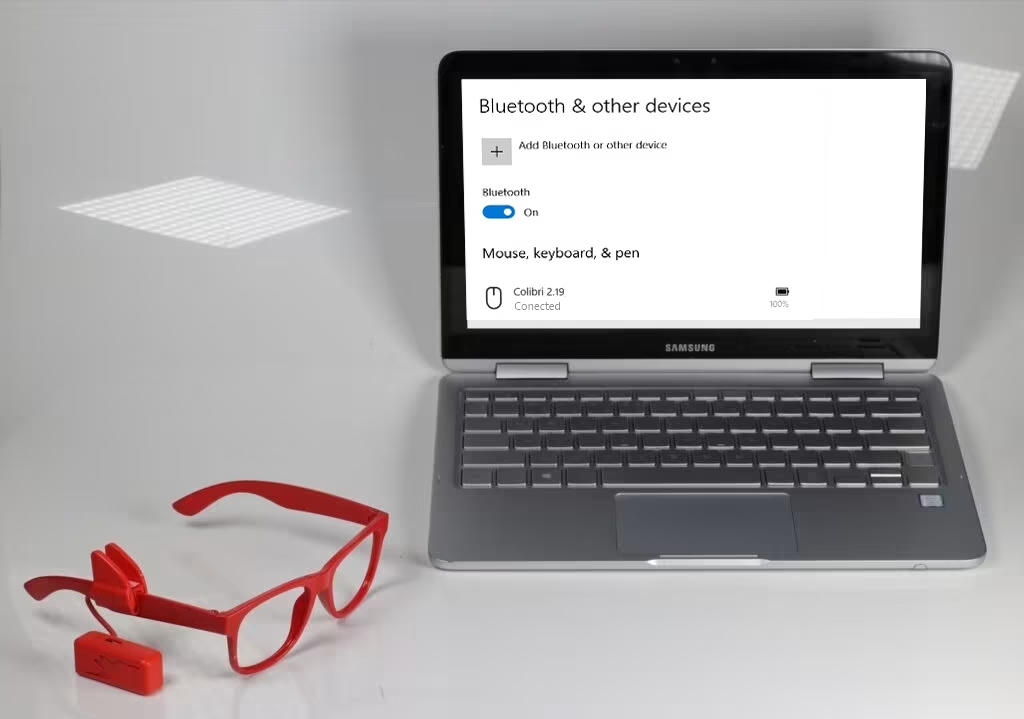
Pairing will be complete when the Colibri’s light stops flashing and remains lit in green.
Important: Before pairing with your iPhone or iPad, enable the Assistive Touch feature.
Otherwise, you won’t see the mouse cursor on the screen. On your iPhone or iPad, go to Settings → Accessibility → Touch → AssistiveTouch.
Next step: Cursor movement
Troubleshooting
My Colibri device doesn't appear in the list of devices.
Make sure your Colibri is disconnected from other devices and available for pairing. This happens when the Colibri’s indicator light is alternating between green and red. If the Colibri remains completely still for more than a minute, it will “sleep” and the indicator light will turn off. If this happens, simply shake the Colibri to return it to pairing mode.
If the light is green without flashing, your Colibri is already connected to another device. Locate this device and unpair it or turn off the device’s Bluetooth.
If the Colibri’s light is flashing green and red and it still doesn’t appear in the Bluetooth search list, check if your device is compatible with Bluetooth 4.0 or higher. Read more about requirements and compatible devices.
Can I connect to more than one device at the same time?
Under construction.
For personalized assistance, send a message to our support team via WhatsApp by clicking here.
The Bluetooth connection is unstable; it disconnects on its own.
Under construction.
For personalized assistance, send a message to our support team via WhatsApp by clicking here.
Can I try it before deciding?
Under construction.
For personalized assistance, send a message to our support team via WhatsApp by clicking here.
I'm connected, but I can't click on anything.
If your Colibri is set to “automatic click,” try completely stopping the pointer for about 1 second over the screen item you want to click.
The time required for the click and the ease with which the pointer can be held still can be adjusted via the My Colibri settings app.
However, if your Colibri is set to click via facial gestures, try making a firm blink or a smile towards the side of your face where your device is positioned. When the Colibri clicks, the device emits a sound.
To adjust the sensitivity of the facial gesture sensor for clicking, or to switch between facial click and automatic click, access the My Colibri settings app.
For personalized help, contact our support via WhatsApp by clicking here.
I connected, but the cursor didn't appear.
If you are using an iPhone or iPad, after pairing Colibri via Bluetooth®, remember that you need to activate the AssistiveTouch feature in your device’s accessibility settings (Settings → Accessibility → Touch → AssistiveTouch).
Otherwise, the pointer will not appear on the screen.
For Android or Windows devices, the pointer should appear immediately when you move your head with Colibri. If this does not happen, try moving your head repeatedly vertically, making an affirmative gesture, and check if the pointer appears with the movement.
For personalized help, contact our support via WhatsApp by clicking here.
My computer doesn't have Bluetooth, how do I use Colibri?
Under construction.
For personalized assistance, send a message to our support team via WhatsApp by clicking here.

